🎨 Run Stable Diffusion Locally: Setup That Works in 2026
SD1.5 vs SDXL VRAM math, the ComfyUI desktop install, your first workflow, where checkpoints come from, and the errors that eat everyone's first afternoon.

Derek Holt · Local AI & Hardware Writer
· 8 min read
⚡ TL;DR — quick answers
- Can I run Stable Diffusion on 8GB of VRAM?
- Yes, on both models, with caveats. SD 1.5 runs comfortably on 8GB. SDXL technically starts working at 8GB in ComfyUI, but you're fighting the card — expect to drop resolution or add memory-saving flags before it's usable for real iteration. 12GB is the tier where SDXL stops feeling like a fight.
- Should a beginner start with SD 1.5 or SDXL?
- Start with SD 1.5 if your card is 6-8GB — it's a 4GB download, native at 512x512, and forgiving of an imperfect workflow. Start with SDXL directly if you've got 12GB+, because its 1024x1024 native output skips the upscale pass SD 1.5 always needs, and most new checkpoints on Civitai now target SDXL or newer base models anyway.
- Is it safe to download checkpoints from Civitai?
- Safer than it used to be, with one condition: only download .safetensors files. Civitai runs every upload through ClamAV and picklescan, and safetensors format can't execute code on load the way the older .ckpt pickle format could. Skip anything still offered only as .ckpt from an unfamiliar uploader.
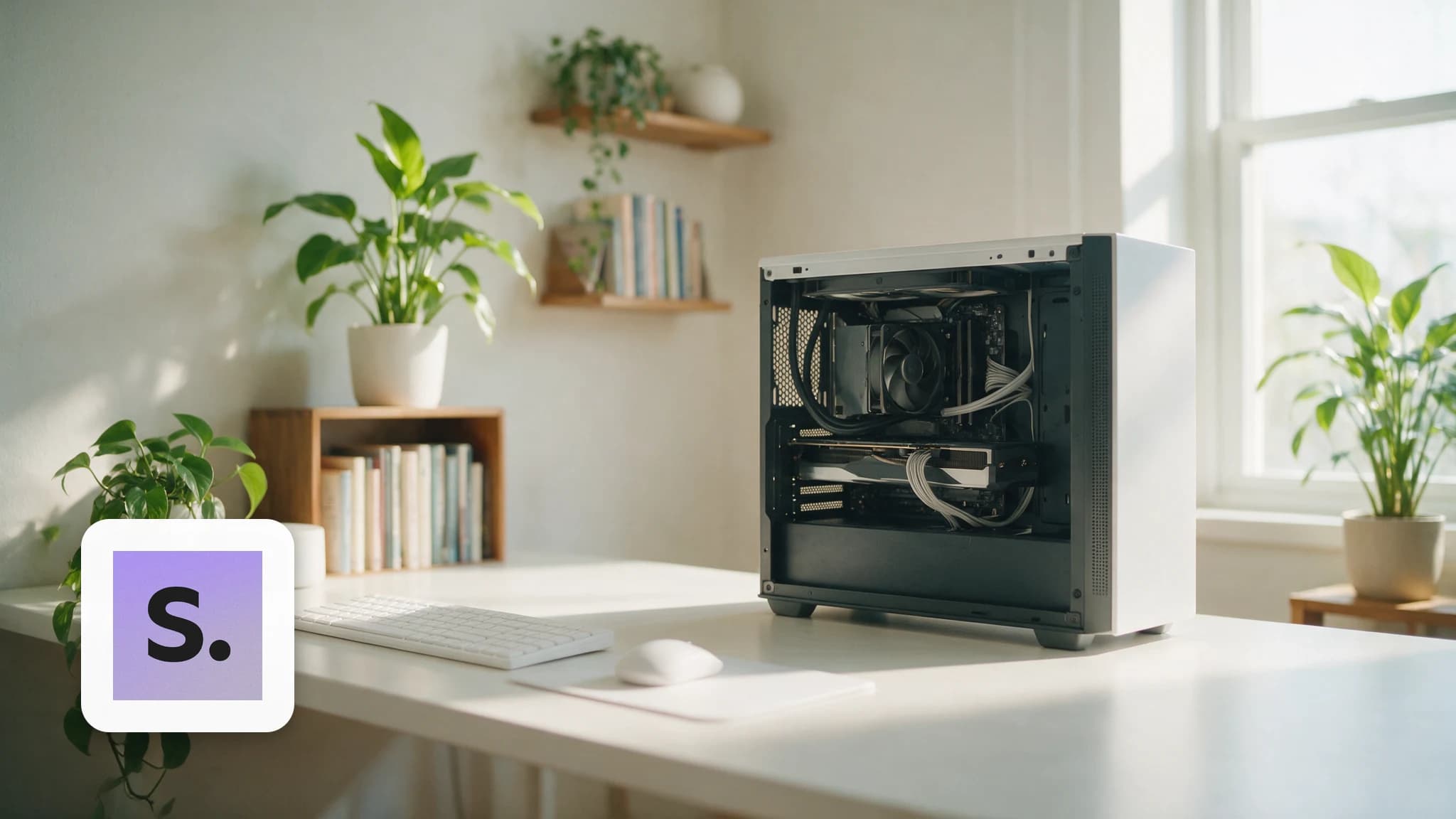
I run Stable Diffusion on the same RTX 4080 that handles every local job on this site — 16GB of VRAM, Windows, nothing exotic — and the single biggest mistake I watch new users make has nothing to do with prompts. It's picking a checkpoint their card can't feed fast enough, then blaming ComfyUI when it chokes. This is the setup I'd hand my past self: which model fits your VRAM, the install path that doesn't waste an evening, your first working graph, where checkpoints legitimately come from, and the four errors that eat almost everyone's first session.
By the numbers
| SD 1.5 | SDXL | |
|---|---|---|
| Minimum VRAM | 4-6GB | 8GB |
| Comfortable VRAM | 6-8GB | 12GB+ |
| Native resolution | 512x512 | 1024x1024 |
| Checkpoint file size (pruned, fp16, safetensors) | ~4GB | ~6.5-7GB |
| Base model released | October 2022 | July 2023 |
| Checkpoint ecosystem | Enormous, mature, still growing | Now the default for new Civitai uploads |
The gap that trips people up isn't the VRAM minimum — it's that SDXL's minimum and its usable number are far apart. 8GB technically loads SDXL. It doesn't comfortably iterate on it, especially once you add a LoRA or two and a ControlNet, which is the normal way anyone actually works.
SD 1.5 vs SDXL: let your VRAM pick
I'd love to tell you SDXL is strictly better and skip the decision tree, but that's not honest. SD 1.5 launched in October 2022, SDXL in July 2023, and the older model still has the deepest checkpoint and LoRA ecosystem on Civitai — years of fine-tunes that a newer base model hasn't caught up to in every style category. If your card is in the 6-8GB range, SD 1.5 isn't a consolation prize, it's the model that actually fits your hardware without a fight.
SDXL's real advantage is native 1024x1024 output. SD 1.5 was trained at 512x512, and pushing it straight to 1024 without a proper hires-fix pass produces the duplicated-limb, warped-anatomy artifacts anyone who's used it recognizes instantly — the model is extrapolating past what it learned. SDXL skips that upscale step entirely, which is also why it needs more VRAM: it's doing more work per generation, not just holding a bigger file in memory.
My rule on my own rig: 8GB or less, SD 1.5, no argument. 12GB+, go straight to SDXL — most new checkpoints on Civitai target it or newer models now anyway, and I'd rather learn the ecosystem I'll actually be using next year. If you're not sure what tier your card puts you in, our GPU buyer's guide breaks down VRAM by exact model class, RTX 3090 vs 4060 Ti is the specific fork most people are actually choosing between, and if you're deciding between buying more VRAM or renting it, local vs. cloud is the honest version of that math. Running this off a laptop instead of a desktop rig changes the calculus further — see local AI on a laptop for what actually fits in a thermally-limited chassis.
The install: ComfyUI Desktop, not the manual route
I ran ComfyUI as a bare Python + git clone setup for over a year before switching to the official desktop app, and I regret the year. Unless you specifically want to hand-manage a Python environment, use Comfy Desktop:
- Download the installer from comfy.org/download — it auto-detects your OS.
- Run the
.exe(Windows requires Windows 10 or later, x64 or ARM64) and follow the NSIS installer prompts. - Launch it from the Start Menu. First run shows a Welcome screen where you create your first installation — it provisions a self-contained, GPU-ready environment for you, no manual CUDA/PyTorch wrangling.
- Budget disk space per the numbers, not vibes: the official docs list roughly 4.85GB for the app installation itself, and that's before a single checkpoint lands. Plan 30-80GB total if you're going to keep more than one or two models around — a single SDXL checkpoint alone runs 6.5-7GB, and you will end up with more than one.
A dedicated NVIDIA or AMD GPU is recommended, not strictly required — CPU-only generation runs, but it's slow enough on anything past SD 1.5 that I wouldn't call it usable for iteration.
One change worth knowing about before you start: ComfyUI shipped Dynamic VRAM enabled by default in March 2026 for NVIDIA cards on Windows and Linux (not WSL). It's a custom PyTorch allocator that streams model weights into VRAM just-in-time instead of loading everything up front, which cuts system RAM pressure and reduces out-of-memory crashes on constrained cards. You may notice VRAM usage look higher than before after this — that's the allocator actively using memory it used to leave idle, not a regression.
Your first workflow
Don't build a graph from scratch on day one. Comfy Desktop's default workflow is a working text-to-image pipeline the moment you open it: a checkpoint loader feeding a CLIP text encode (positive and negative prompt), a KSampler, a VAE decode, and a save-image node. Run it once, unmodified, with whatever default checkpoint ships or whatever you've dropped into the models folder — before you touch a single value. If that produces an image, you've confirmed your GPU, drivers, and install all actually work, and any error you hit after that is a workflow problem, not an environment problem. That one sanity check saves more debugging time than anything else in this guide.
From there, change one node at a time: swap the checkpoint, then the sampler, then the resolution. Isolating variables is the only way to know what actually broke something when a change makes your output worse.
Where checkpoints actually come from
Two real sources, and they serve different jobs. Civitai is where you browse — filterable by base model, style, and community rating, with the deepest catalog of SD 1.5 and SDXL fine-tunes anywhere. It runs every upload through ClamAV and picklescan specifically to catch the malicious-pickle exploit that plagued early .ckpt files, which is why .safetensors is the format you want: it can't execute arbitrary code on load, full stop. Hugging Face is where you go when you already know the exact model — base SDXL from Stability AI, or a specific fine-tune's official repo — and it's the platform model authors treat as canonical.
My rule: Civitai for discovery, Hugging Face when I know the name. Either way, check the file extension before you check anything else — .safetensors only, no exceptions on an unfamiliar upload.
The errors that eat everyone's first afternoon
Four failures account for nearly every "ComfyUI is broken" post I've seen, and none of them mean it's actually broken.
CUDA out of memory. The most common one, especially on 8GB cards running SDXL with a LoRA or two stacked on. First move: restart ComfyUI — VRAM fragmentation from a previous run is real and a restart clears it for free. Still failing? Drop resolution one notch before you start stripping nodes (SDXL at 768x768 instead of 1024, or SD 1.5 down to 384 on a genuinely tight card).
Flat black or grey output, no error message. This one is quietly the most confusing because ComfyUI doesn't flag it — the render just finishes and hands you a black square. Root cause is almost always the VAE: SDXL's own VAE overflows in fp16 precision and produces NaN values, which decode as pure black. The fix is sdxl-vae-fp16-fix (madebyollin's Hugging Face release) wired explicitly into a Load VAE node — it's mathematically closer to identical to the standard VAE, just stable in fp16. SD 1.5 has the equivalent issue less often, but if you hit it, load vae-ft-mse-840000-ema-pruned explicitly instead of trusting whatever's baked into the checkpoint.
Missing custom nodes. You load someone else's workflow off Civitai or Reddit and half the graph shows red "missing node" boxes. Open the Manager panel and use "Install Missing Custom Nodes" — it reads the workflow and grabs exactly what's referenced. Don't hand-install nodes one at a time hoping you guessed right.
Resolution mismatch on SDXL. Generating SDXL at 512x512 because that's the number you remember from SD 1.5 produces distorted, doubled anatomy — SDXL was trained natively at 1024x1024 and forcing it small breaks the same way pushing SD 1.5 past 512 does, just from the other direction. Match your resolution to your checkpoint's actual training size, not a number that felt safe.
How we verified
VRAM tiers and checkpoint file sizes are cross-checked against the ComfyUI Wiki's GPU buying guide and current Civitai/Hugging Face checkpoint listings. Comfy Desktop's install steps and disk-space figure come from ComfyUI's own documentation at docs.comfy.org. The Dynamic VRAM details trace to ComfyUI's official blog post dated March 25, 2026. The SDXL fp16 VAE issue and its fix are documented directly on the madebyollin/sdxl-vae-fp16-fix Hugging Face model card. Civitai's scanning process (ClamAV, picklescan) is documented on the Civitai wiki. My own install and first-render numbers are from my RTX 4080 rig, not a spec sheet.
If Stable Diffusion is your entry point into running models on your own hardware, it's worth knowing it's not the whole story — the same GPU runs local LLMs through Ollama, and our running list of best local AI tools covers the rest of the stack once ComfyUI is working.
Verdict
SD 1.5 and SDXL aren't a generational upgrade where the old one is obsolete — they're two different VRAM tiers with two different checkpoint ecosystems, and picking the one your card actually fits beats chasing the newer number. Install through Comfy Desktop, run the default workflow unmodified before you change anything, pull checkpoints from Civitai or Hugging Face in .safetensors only, and when something breaks it's almost certainly one of the four errors above — not a broken install. None of this requires a subscription or a queue; it requires a GPU you already own and about twenty minutes of actual setup time.
Frequently asked questions
▸Can I run Stable Diffusion on 8GB of VRAM?
Yes, on both models, with caveats. SD 1.5 runs comfortably on 8GB. SDXL technically starts working at 8GB in ComfyUI, but you're fighting the card — expect to drop resolution or add memory-saving flags before it's usable for real iteration. 12GB is the tier where SDXL stops feeling like a fight.
▸Should a beginner start with SD 1.5 or SDXL?
Start with SD 1.5 if your card is 6-8GB — it's a 4GB download, native at 512x512, and forgiving of an imperfect workflow. Start with SDXL directly if you've got 12GB+, because its 1024x1024 native output skips the upscale pass SD 1.5 always needs, and most new checkpoints on Civitai now target SDXL or newer base models anyway.
▸Is it safe to download checkpoints from Civitai?
Safer than it used to be, with one condition: only download .safetensors files. Civitai runs every upload through ClamAV and picklescan, and safetensors format can't execute code on load the way the older .ckpt pickle format could. Skip anything still offered only as .ckpt from an unfamiliar uploader.
▸Why does ComfyUI handle low VRAM better than other Stable Diffusion UIs?
Its node graph only loads what a given workflow actually asks for instead of one monolithic pipeline, and as of March 2026 ComfyUI ships Dynamic VRAM by default on NVIDIA cards — a custom PyTorch allocator that streams model weights in and out of VRAM just-in-time instead of front-loading everything, which is what keeps larger checkpoints from crashing smaller cards.
▸What's the first thing to try when ComfyUI throws a CUDA out of memory error?
Restart ComfyUI before you touch a single setting — VRAM fragmentation from a prior generation is a common, boring cause and a restart clears it. If it recurs, drop your output resolution one notch (SDXL at 768x768 instead of 1024x1024) before you start removing LoRAs or ControlNets from the graph.
The 5 best AI video finds, every week
New models, tested prompts, and what actually worked in our production — one short email a week. No spam, unsubscribe anytime.
Written by Derek Holt
Local AI & Hardware Writer
Runs the site's local-inference rig and benchmarks every GPU, quant, and speed-stack claim on it personally before it goes in a guide. Will not shut up about VRAM bandwidth.
Explore these topics
Every guide, comparison and prompt library we have on each.
Keep learning


Workflow & Craft · GPUs & Hardware
 Guides
Wan 2.2 Animate: Character Animation on Your GPU (2026)
Wan 2.2 Animate transfers a real performance onto any character image, motion and expressions included. ComfyUI setup, VRAM tiers, and mode choice.