🎬 Seedance 2.5 Previz Workflow: 3D Blockouts to Finished Shots
Seedance 2.5 accepts a low-poly 3D blockout as a reference slot. Here's the previz workflow we use to lock composition before spending a 30-second generation.

Jordan Reyes · AI Video Producer
· 5 min read
⚡ TL;DR — quick answers
- What 3D file formats does Seedance 2.5 accept for previz?
- Lightweight OBJ or FBX exports work — the point is a low-poly white model, not a finished asset. Blender, Cinema 4D, Maya and SketchUp all export suitable blockouts, and you attach the file as one of your reference slots alongside a style reference.
- Do I need to know 3D software to use this?
- For the full blockout path, yes — but a basic one. You're placing boxes and cylinders to define volumes and a camera path, not modelling anything. If that's still too much, the storyboard-grid approach in this guide gets you most of the compositional benefit with no 3D at all.
- Why not just generate and re-roll until it looks right?
- Because a 30-second single-take generation is an expensive re-roll. Previz exists to move your failures to the cheap end of the pipeline — the whole economic argument for blockouts is that a bad idea should cost you ten minutes in Blender, not a full render.
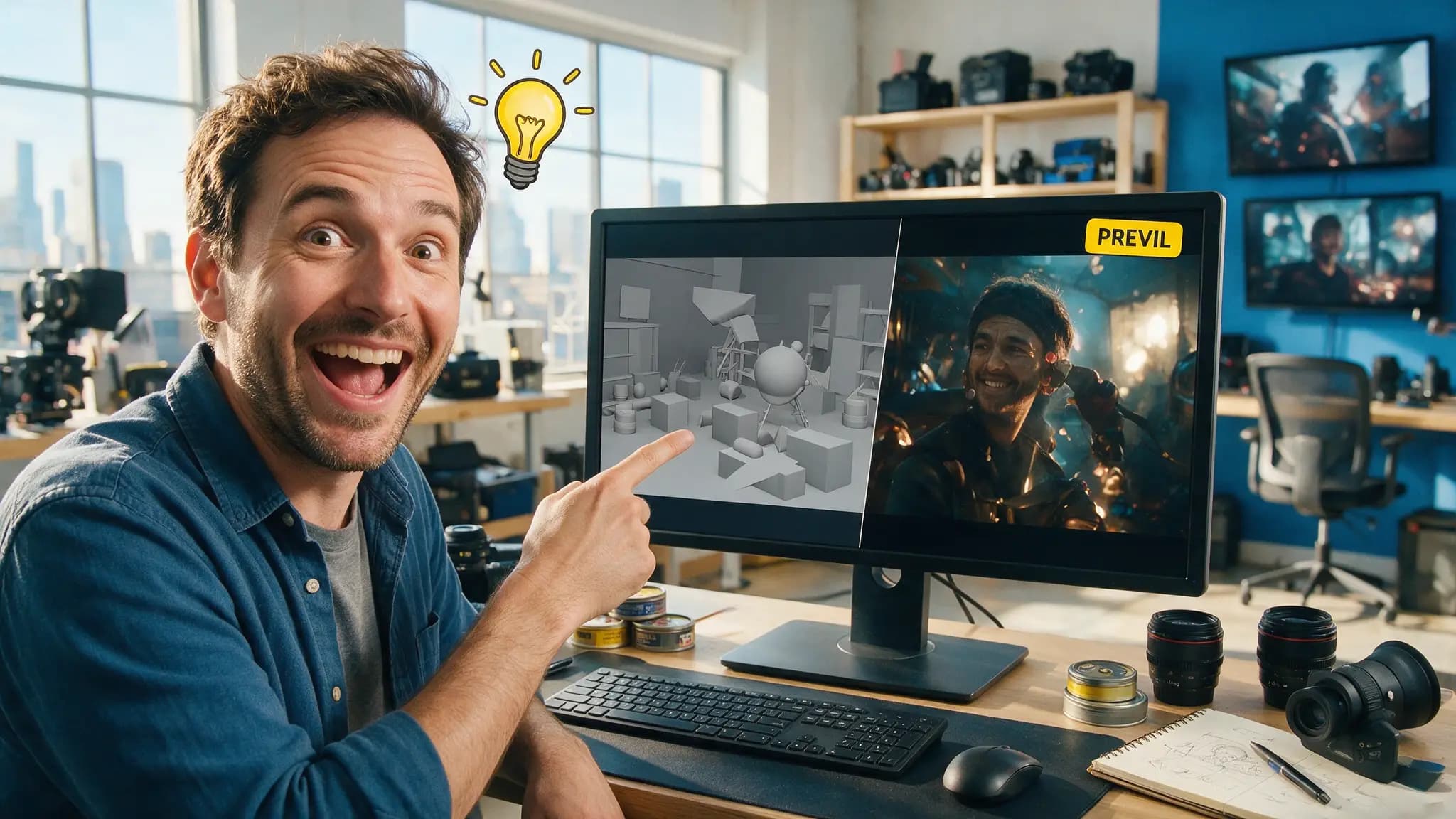
Seedance 2.5's headline features were native 4K and 30-second takes. The one that changed how we actually work is quieter: you can hand it a rough 3D blockout and it will treat that geometry as a spatial scaffold for the shot. After a year of producing AI video where "camera control" meant writing adjectives and hoping, this is the first tool that makes previz mean what it means on a real set.
By the numbers
| Capability | Seedance 2.5 |
|---|---|
| Released | Early July 2026 |
| Max continuous take | 30 seconds |
| Max resolution | Native 4K |
| Reference slots | Up to 50 multimodal |
| 3D previz input | Lightweight OBJ / FBX blockout |
| Source tools | Blender, C4D, Maya, SketchUp |
| Audio | Included in base rate |
Why a 30-second take changes the economics
When clips were five seconds, re-rolling was the workflow. You generated eight variations, picked one, moved on. Nobody planned, because planning cost more than regenerating.
At 30 seconds continuous, that inverts. A single take is now a meaningful commitment of time and credits, and the failure modes get worse — a camera move that drifts off-axis at second 22 wastes the whole generation, not a fifth of it. Which means the discipline that governs live-action production suddenly pays here too: decide the shot before you shoot it.
That's what the blockout feature is for. It moves the expensive decisions — composition, camera path, spatial relationships — to a stage where fixing them costs you a few minutes of dragging boxes around.
The workflow
1. Block out the space, not the objects. Open Blender (or whatever you know) and place primitives. A box for the car, a cylinder for the actor, a plane for the ground, walls where walls go. Grey, untextured, no detail. You are defining volumes and their relationships — where things are relative to each other and to the camera.
2. Set the camera move. This is the part worth spending time on. Animate a camera through your blockout: the push-in, the arc, the crane down. Play it back. If the move feels wrong on grey boxes, it will feel wrong photoreal — and you've now learned that for free.
3. Export lightweight. OBJ or FBX, low poly. Resist the urge to add detail; the model needs the scaffold, not your subdivision surfaces. Heavy files buy you nothing here.
4. Attach it as a reference, plus a style reference. The blockout goes into one reference slot; a style frame — a still that carries the grade, lens character and lighting you want — goes into another. With up to 50 multimodal slots you also have room for character identity references, which is how you keep faces consistent across a sequence. Our consistent characters guide covers that side in depth.
5. Prompt for what the geometry can't say. The blockout handles space and camera. Your text prompt should carry everything geometry cannot: time of day, weather, emotional register, material qualities, wardrobe. Don't re-describe the camera move in words — you've already specified it, and redundant instructions fight each other. Our Seedance 2.5 prompt library has the phrasing patterns that survive this handoff.
6. Generate at low resolution first. Confirm the model respected your blockout before committing to a 4K render. If subjects are ignoring your volumes, the fix is in the blockout, not the prompt.
What the blockout actually fixes
Three specific problems, from our own production logs:
Camera drift. The single most common re-roll cause. Text-specified moves are suggestions; geometry-tracked moves are repeatable. If you need the same push-in across six shots in a sequence, this is the only reliable way to get it.
Scale collapse. Models are notoriously bad at relative size — a small character next to a large one drifts toward matching heights over a take. Volumes in a blockout are unambiguous. A cylinder that's half the height of another cylinder stays half the height.
Axis breaks. If your character is screen-left in shot A, keeping them screen-left in shot B is a continuity rule the model doesn't know. Laying out both shots against the same blockout makes the 180-degree line a property of the scene rather than something you have to remember.
Where it doesn't help
- Performance and micro-expression. Geometry says nothing about acting. That's still prompt and reference work.
- Fast, chaotic action. Blockouts stabilise deliberate camera work. Whip pans and handheld chaos are better handled with prompt language and cut rhythm.
- One-off shots. If you need a single clip and don't care about matching anything, the blockout overhead isn't worth it. Just generate.
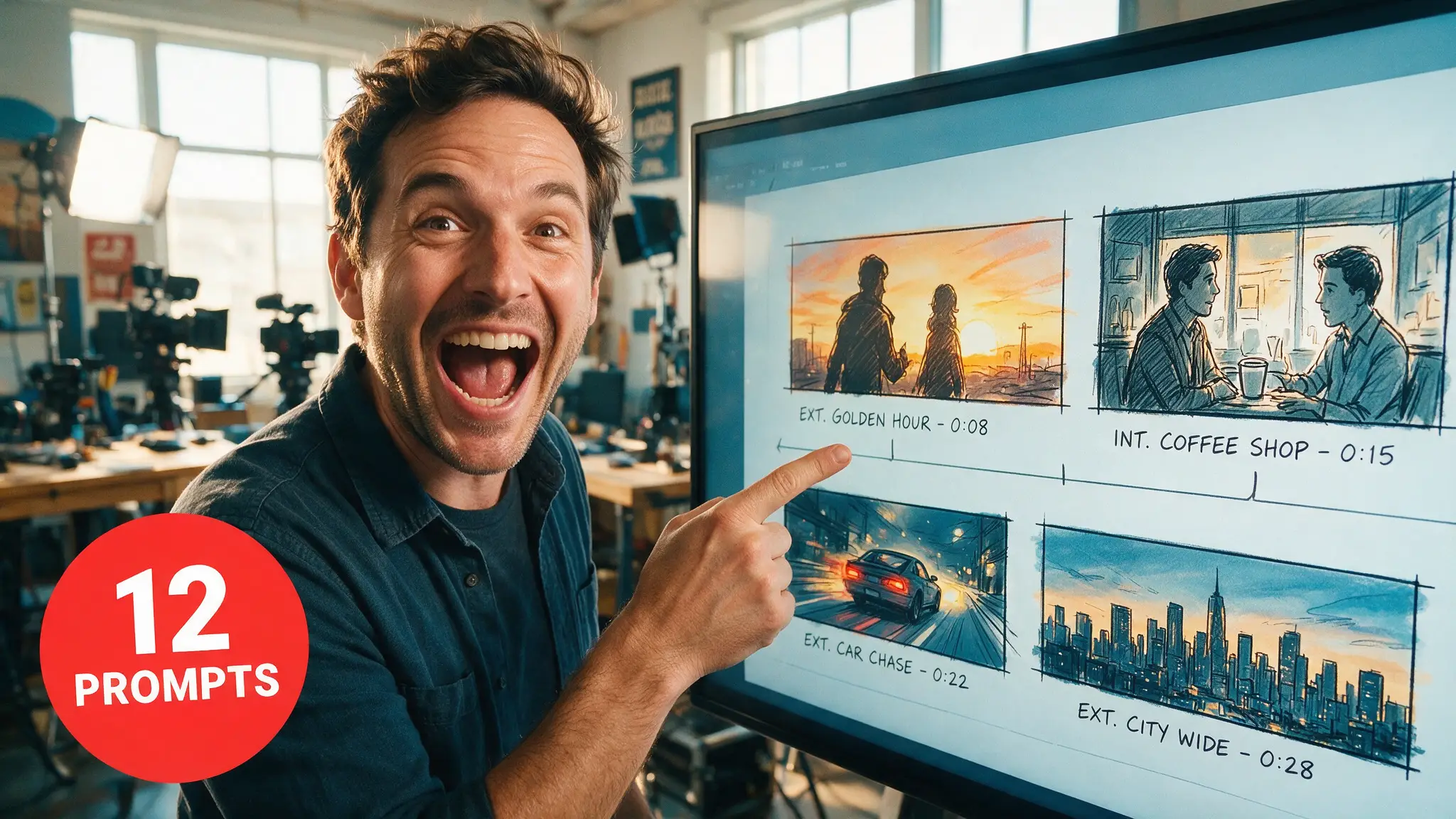
- Anyone without 3D basics. Be honest about this. If opening Blender is a wall, use a storyboard grid instead — a 3×3 sheet of your nine key frames gets you a lot of the compositional discipline without the software.
How we tested this
We ran the blockout path against our normal prompt-only workflow on the same shot briefs — a character walking a defined path through a defined space with a specified camera move — and counted re-rolls to an acceptable take. The pattern we care about isn't a benchmark number; it's where the failures moved. With blockouts, failures shifted from "camera did something else" to "performance wasn't right," which is a much cheaper category of problem because it doesn't require rebuilding the shot. Figures on model capability are ByteDance's published specs as of the early-July release; treat pricing and tier details as moving targets.
Pros and cons
Strong for: sequences that need continuity, product and architectural visualisation, anything where a client approved a specific camera move, and multi-shot narrative work where spatial consistency across cuts matters.
Weak for: speed. This is a slower front end than typing a prompt. It pays off across a sequence and costs you time on a single clip.
The broader point: AI video is drifting toward the workflows film production already solved. Previz, style frames, continuity ledgers — these aren't legacy overhead, they're what you invent when takes get expensive. Seedance 2.5 is the first model where that convergence is explicit in the tooling. If you're weighing it against the alternatives for a specific project, our Kling 3.0 comparison covers where each one earns its render cost, and the full Seedance 2.5 guide has the model's other capabilities.
ByteDance's model documentation is at seed.bytedance.com.
Frequently asked questions
▸What 3D file formats does Seedance 2.5 accept for previz?
Lightweight OBJ or FBX exports work — the point is a low-poly white model, not a finished asset. Blender, Cinema 4D, Maya and SketchUp all export suitable blockouts, and you attach the file as one of your reference slots alongside a style reference.
▸Do I need to know 3D software to use this?
For the full blockout path, yes — but a basic one. You're placing boxes and cylinders to define volumes and a camera path, not modelling anything. If that's still too much, the storyboard-grid approach in this guide gets you most of the compositional benefit with no 3D at all.
▸Why not just generate and re-roll until it looks right?
Because a 30-second single-take generation is an expensive re-roll. Previz exists to move your failures to the cheap end of the pipeline — the whole economic argument for blockouts is that a bad idea should cost you ten minutes in Blender, not a full render.
▸Does the blockout control camera movement too?
Yes, and this is the strongest part of the feature. Camera paths track the geometry you laid out, which means you get a repeatable move rather than whatever the model felt like doing — the single biggest source of re-rolls in our own production work.
The 5 best AI video finds, every week
New models, tested prompts, and what actually worked in our production — one short email a week. No spam, unsubscribe anytime.
Written by Jordan Reyes
AI Video Producer
Runs multiple faceless YouTube channels and tests every major AI video model against the same prompts before recommending one. Tracks render time and credit cost like other people track calories.
Explore these topics
Every guide, comparison and prompt library we have on each.
Keep learning
Seedance · Workflow & Craft
 Comparisons
Seedance 2.5 vs Meta Muse Video: Honest 2026 Verdict
Meta's Muse Video does face cloning at $19/month. Seedance 2.5 does 30-second production shots. We use one daily — here's which job each actually wins.